How I Claimed My Content In Google
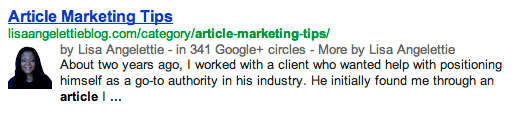
If you’ve conducted a search for a topic lately in Google, you will have noticed that for some of the results the author’s photo, name, and Google+ circle information is included with the results. This is a great way to stand out in the search engine rankings and further establish your credibility in your marketplace. Actually there have been some recent statistics that show that people click on these types of results (also called rich snippets) 150% more than a regular result. Which makes a lot of sense. They really do stand out and ultimately what you are doing is “claiming your content” in Google.
So I did a little research around this and learned that this type of result is called Google Authorship Markup and while Google has directions for how to do this, they were a little complicated. I did a little more research and found some directions on a few websites, but each one varied on their steps. One I found helpful was neil Patel’s over on Quicksprout.
Ultimately after some reading various articles, I had to combine the directions from several sites and test. Some didn’t work out for me and I really don’t know why. So I’m not going to even speculate. Eventually I figured out the steps that worked for me, and so I thought I’d share them with you today so that readers can start to see your name and face as the author of many of your articles.
Fill Out Your Google+ Profile…
Step 1 – Add & Verify Your Email Address
You first have to make sure that you have filled out your profile on Google+. You don’t need to actively use this social media tool for authorship to work, but I highly recommend getting active with this social media platform because it can directly influence your rankings (although they won’t readily admit that:). When you fill out your profile, you’re going to add an email address.
Important: This email address needs to be one from your domain. So for instance, an email I may use is info [@] LisaAngelettieBlog.com. Not a gmail or other free one. This shows that you are a serious author and it will show Google that articles published by the author with the same name and email address are connected.
You’ll have to verify that email address and G+ will send you a verification link to that email address, that you’ll click to verify.
Step 2 – Add Your Content
Now you have to connect your content to your profile. Google needs to know where you publish. In the CONTRIBUTOR area of your profile, you will want to add your own website url as well as any other websites you regularly contribute to so that your profile will show up for those article results as well. But let’s focus on your site for now. Add your full site’s url. When you save, you will see something similar to the image below. The title of your site will be what see in the “contributor” area.

Step 3 – Check Your Byline
Make sure that your byline on your website MATCHES the name on your Google+ account or they will not be able to recognize you as the author.
Add Appropriate Linking Code To Your Site…
Step 4 – Adding the REL paramaters
Okay, here is where things get a little muddy. I tried a variety of strategies to get things to work for me so I’m going to tell you everything I put in place to get things working. You may not have to do all of these steps, but honestly it takes like 5 minutes so you might as well go ahead:)
On your HOME page, you should have links to your social media profiles. They could be displayed discreetly or prominently but they should be there so that the search engines can easily see them when they spider you site. One of those profiles should be to Google+ and be linked to your profile there. When you create this link though, you will add a little REL code to the end naming you as the “PUBLISHER” of the content on your site.
Example: <a href=”https://plus.google.com/107100109138758990604?” rel=”publisher” target=”_blank”>
On the ABOUT page on your site, you should add a link to your social media profiles as well. Link the G one to your profile page BUT also include the REL tag of “ME”.
Example: <a href=”https://plus.google.com/107100109138758990604″ rel=”me”>
Step 5 – Test Everything
Okay now that you have everything linked and saved, it’s time to test. You can do this by using the rich snippet testing tool. Be patient, because sometimes it can take some time to show up in the search engines, although I was able to pretty much see immediate results.
When Guest Blogging
When you are guest blogging, most sites will feature an author box or they will add a few lines of your bio to the end of your article. If you are able to add several links to that bio which most sites will allow, here’s what you need to do:
First – Link your author name to your ABOUT page. Remember this page has your G+ profile link.
Second – Link to your G+ profile but just make sure to add the REL=”author” code to the end of that link. This let’s Google know that you are indeed the author of that particular article. Example: Example: <a href=”https://plus.google.com/107100109138758990604″ rel=”author”>
Third – Add the link to your guest post into the CONTRIBUTOR section of your G+ profile. If you guest post a LOT this could end up being a cumbersome task but well worth it to you if it increases your conversion rate like the statistics suggest. Another strategy could be to only link to the higher profile sites you guest post on and not some of the smaller ones — but in my opinion it’s worth the extra 3 minutes that it takes.
I know that there are several other workarounds for claiming authorship in the big G, so do have any other tips for implementing this authorship strategy? Let us know!


Lisa Angelettie
Latest posts by Lisa Angelettie (see all)
- Back Matter 101: How To Add Killer Call To Actions To Your Books - August 3, 2015
- Shelfari Is No Longer An Option In Author Central - July 28, 2015
- What Are The Most Well-Read Cities In America? - June 2, 2015
Good info Lisa. I have this working for the sites where I publish but I don’t think I’ve done quite everything you mentioned for my own site so I’ll have to make sure I go back and double check. The process does seem quite convoluted but hopefully they will make it a little more straight forward in the upcoming months. We’ll see.
That’s great Tawanna! Yes, make sure to get things up and linked on your site as well so that all your posts are front and center in the search engine listings.
Thanks Lisa, I’m going to try this. It will be a significant challenge for me because it involves adding Code. But with this information, I will give it a go.
Thanks for telling us which email address to use – when I read ‘add your email address’ I thought…Ok but which one? – and then you told me! You should add ‘mind-reader’ to your CV.
I found a Plugin a while ago that added Rich Snippets, but it was too complicated for me to figure out. I”ll see if I can find it again and then I’ll add it here so you can see if it helps….or not. It was double dutch to me at the time I researched it, but maybe now I’ll understand it better.
Thanks again, Carol
Update: the plugin I found before was for review stars only and was incomprehensible. But…..I found this one, Authorsure, which looks ok
http://wordpress.org/extend/plugins/authorsure/
I might try it out and see if it works. Did you research this one Lisa?
Hi Carol,
I have so many plugins using a lot of resources on my blog that I try to hardcode things when I can. This was pretty simple to implement, but for folks who don’t want to do that this plugin you referenced may be a great fix. I may have to break down and implement a plugin like this in the future to feature my guest authors. My solution works when you are only trying to claim your own work.
Hi Lisa,
can you tell us how you manage to have a working ‘hot’ link in your Comments section? I’ve been told by several WordPress geeks that it cannot be done, and that WordPress has been trying to make this possible for months.
Thanks, Carol.
Hi Lisa: First, I want to say a big “Awwww” on that photo of Ava as a sunflower. Talk about adorable…..
Next, I’m struggling with the above instructions. In fact, I had NOT seen the author photo in a search – until you showed us at the top of this article. So I’m going to plunge ahead and give it a try. Question: Is it okay to put our company logo instead of the author picture? I looked all over and don’t see anything one way or the other. But I don’t want to anger Google by mistake either. Do you happen to know?
Thanks.
Hi Melanie:)
I have not seen anyone use a logo, I’m pretty sure it’s in Google’s terms of service somewhere that you can’t. The whole point of Google authorship is to claim content that you are the author of. A real person. Logos would lend itself to spamming at some point. So you’ll probably need to figure out who can be the “face” of your company when it comes to content. No one wants to read something from an anonymous author. They want to connect with the author on a human level.
Carol M — I missed your earlier comment. I’m not sure what you mean by a hot link. Can you explain a little further. Are you trying to create a link within your comments on other people’s sites?
Hi, Lisa,
I’ve always wondered how people got their picture to show up in Google searches. I will certainly try to implement this with all my stuff, too. Great information! Thanks for sharing.
Deb 🙂
Hi Deb,
I’m glad you found the info useful. Just make sure to implement:) Should only take you about 15 minutes.
Best,
Lisa